Restaurant Tablet Hell: How to Stop Missing DoorDash, Uber Eats, and Grubhub Orders
It is 6:45 on a Friday. Your DoorDash tablet is face-down next to the printer. The Uber Eats tablet went to sleep twenty minutes ago because someone bumped the screen timeout setting. The Grubhub tablet is plugged in but the cable is half-out and the battery is at 4 percent. Your expo lead is calling tickets. Nobody is watching the screens. Three orders just came in. Nobody knows.

This is tablet hell, and it happens in kitchens of every size, from single-location diners to ghost kitchen operators running four virtual brands off one prep line.
Quick Answer
Missed third-party delivery orders are almost always a station-design problem, not a staff problem. When tablets are flat on a counter, buried under supplies, or sharing a single cord with three other devices, they get ignored or die. Mounting each tablet vertically at eye level, keeping it powered, and assigning it a fixed position on the line turns a reactive scramble into a manageable workflow. The right restaurant tablet mount setup does not support zero missed orders, but it removes the most common physical reasons orders go unseen.
Why Tablets Keep Getting Ignored During Rush
Third-party platforms depend on the tablet staying active and attended. DoorDash uses the merchant tablet for real-time order and store management tasks, which means the screen needs to be in someone's line of sight at all times. Uber Eats notes that its Orders app needs to stay visible in the foreground and can pause accepting orders after missed orders or offline time. Grubhub's tablet setup guidance similarly assumes the device is in a stable, attended position.
None of that works when the tablet is lying flat on a cluttered counter. The physical setup is the first thing to fix.
Here are the most common reasons tablets fail during service:
- Tablet is flat on the counter and the screen is not visible from the line
- Charging cable is loose, short, or shared with other devices
- Screen timeout is set too short and nobody resets it during rush
- No assigned owner, so everyone assumes someone else is watching it
- Multiple tablets are stacked or scattered with no clear organization
- Tablet slides or gets knocked over when the counter gets busy
The Station-Design Fix: Vertical, Powered, Assigned
The solution is to treat your tablet station the same way you treat your ticket rail. Every position has a purpose. Every device has a home. Nothing moves unless someone deliberately moves it.
That means mounting tablets vertically so the screen faces the person responsible for it, securing the power cable so it cannot be accidentally pulled, and organizing multiple tablets so each platform has its own dedicated screen with no overlap or confusion.
The table below maps common station setups to the right mounting approach.
| Station Type | Number of Platforms | Recommended Mount Approach | Key Priority |
|---|---|---|---|
| Single-location restaurant, expo counter | 1 to 2 | Drill-base locking stand per tablet | Stability, cable management |
| Ghost kitchen, 3 to 4 virtual brands | 3 to 4 | Quad tower stand, one location | Visibility, floor space efficiency |
| Counter with POS plus delivery tablets | 2 phones or small devices | Dual POS stand at counter edge | Dual-device access, security |
| High-volume kitchen, multiple stations | 4 or more | Quad tower plus individual drill-base units | Platform separation, power access |
The Right Mount for Each Setup
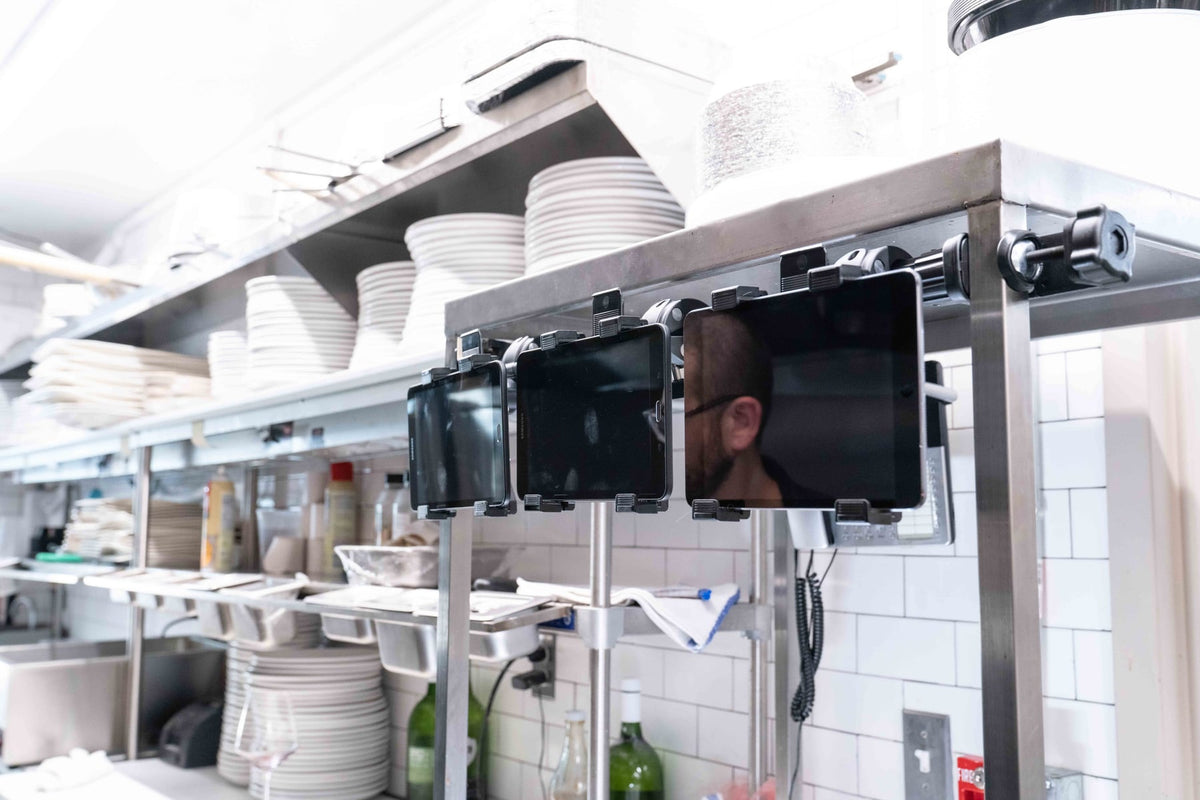
If you are running three or four delivery platforms out of one kitchen, the iBOLT Quad Tablet Tower TabDock™ Stand is built for exactly that situation. It holds four tablets in one vertical tower, keeps every screen facing forward, and uses a fraction of the counter space that four individual stands would require. At $149.95, it is a single purchase that replaces a scattered mess of leaning tablets and improvised stands.

iBOLT Quad Tablet Tower TabDock™ Stand - $149.95
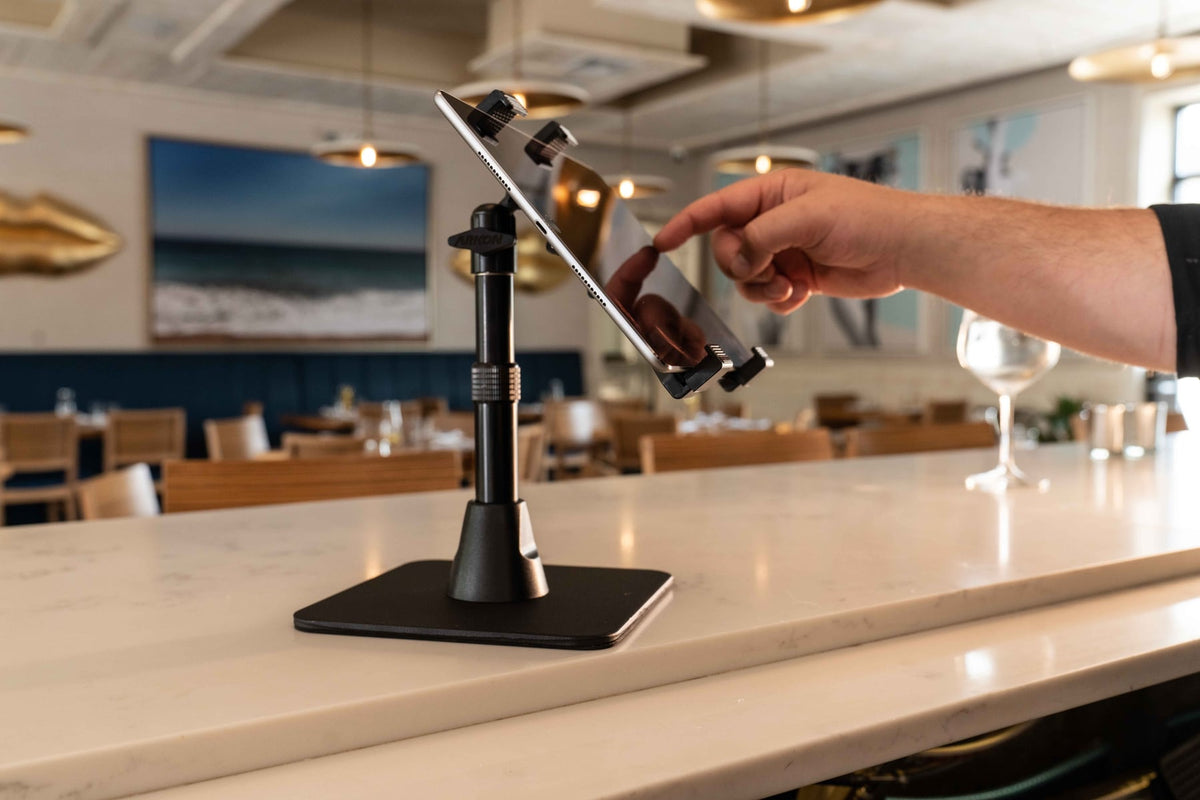
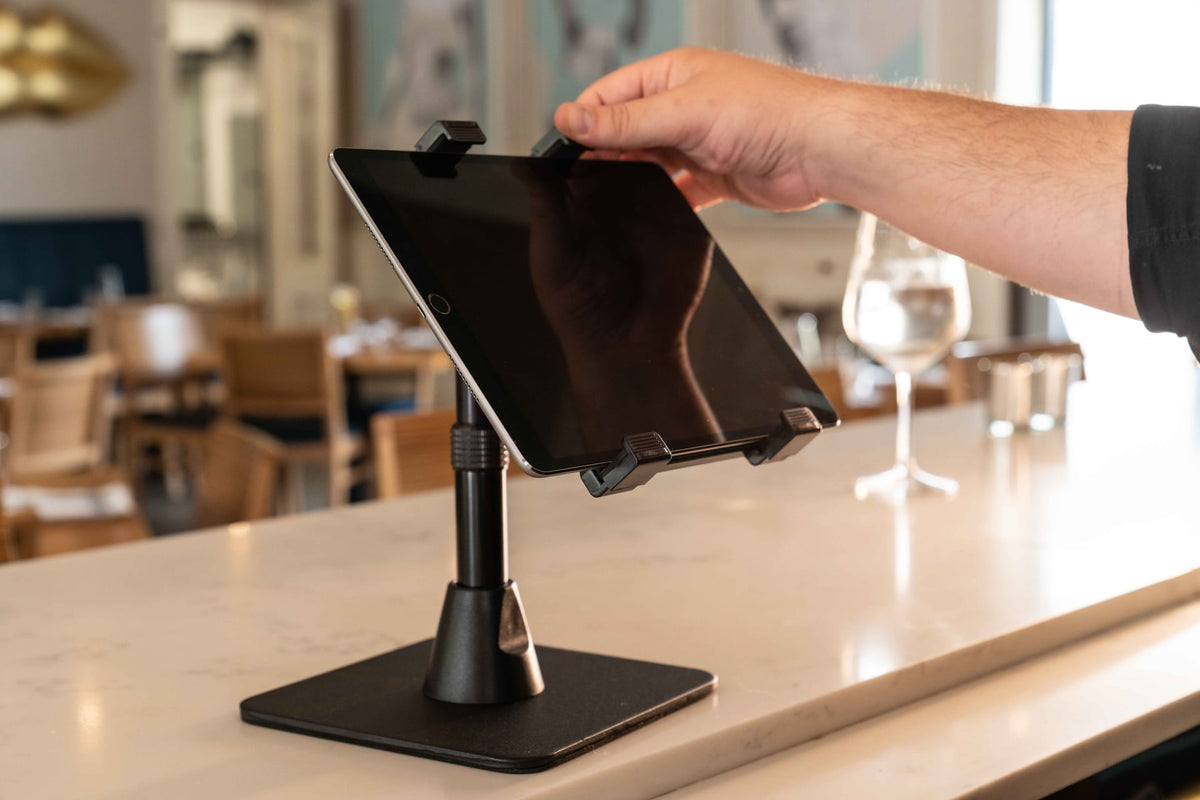
For stations where you need one tablet locked to a specific position on the counter, the iBOLT LockPro™ Drill Base Locking Tablet Stand drills directly into the surface so the tablet does not move, slide, or get relocated during a busy shift. The aluminum construction handles a commercial kitchen environment, the pole height is adjustable, and the 360-degree rotation lets you set the exact viewing angle for whoever is working that station. It fits 7 to 10-inch tablets and is priced at $139.95.

If your front counter runs a POS system alongside a delivery device or a customer-facing screen, the iBOLT Phone Dock'n Lock Dual POS Stand handles two devices on a single drill-base pole. It accommodates phones and smaller devices between 4.8 and 7.25 inches tall, locks both in place, and keeps the counter organized without taking up extra real estate. At $115.00, it works well for cashier and customer-facing configurations or for pairing a delivery notification device with a POS terminal.

iBOLT Phone Dock'n Lock Dual POS Stand - Secure Dual-Device Mount for Point of Sale Systems - $115.00
Setting Up the Station: A Pre-Service Checklist
Once the mounts are in place, run through this checklist at the start of every shift. Post it near the tablet station so it becomes part of your opening routine.
- Each tablet is seated fully in its mount and the locking mechanism is engaged
- Every tablet is plugged in and showing a charging indicator
- Each platform app is open and showing the correct store status (open, accepting orders)
- Screen timeout is set to the longest available interval or disabled for service hours
- One staff member per station is assigned as the tablet owner for that shift
- Cables are routed away from the prep area and secured so they cannot be pulled loose
- Tablet screens are visible from the primary working position at that station
One More Thing: Assign Ownership
The best mount in the world does not help if nobody is responsible for the screen. Physical setup and staff assignment work together. Once the tablets are mounted, vertical, and powered, the last step is making sure one person per station knows those screens are their responsibility during service. That is a management decision, but the mount makes it easier to enforce because the tablet has a home and everyone can see when it is unattended.
Frequently Asked Questions
What size tablets do these mounts fit?
The iBOLT LockPro™ Drill Base Locking Tablet Stand fits 7 to 10-inch tablets. The iBOLT Quad Tablet Tower TabDock™ Stand is designed for delivery tablet applications. Check each product page for current compatibility details before ordering.
Do these mounts require drilling into the counter?
The LockPro™ Drill Base stand and the Dual POS stand both use drill-base mounting with self-tapping screws for a permanent, stable installation. The Quad Tablet Tower TabDock™ is a freestanding floor unit that does not require drilling.
Can I route charging cables through these mounts?
The mounts are designed for commercial use and accommodate standard tablet and phone charging cables. Plan your cable routing before installation so cords stay clear of the prep area.
Will a better mount stop all missed orders?
No mount eliminates every missed order. Better mounting improves visibility, keeps devices powered, and reduces the physical reasons orders go unseen. Staff assignment and app settings still matter alongside the hardware setup.
Is the Quad Tower stable enough for a busy kitchen counter?
The iBOLT Quad Tablet Tower TabDock™ Stand uses heavy-duty construction designed for repeated commercial use. It is built to hold four tablets securely in a point-of-purchase environment.
What if I only have one delivery platform right now?
Start with the iBOLT LockPro™ Drill Base Locking Tablet Stand for a single locked position. If you add platforms later, the Quad Tower gives you room to grow without adding counter clutter.
See which setup fits your station at iboltmounts.com and explore the full lineup of commercial tablet and POS mounting solutions.

Leave a comment
This site is protected by hCaptcha and the hCaptcha Privacy Policy and Terms of Service apply.