
Restaurant Tablet Workflows: Separate Tablets, POS Integration, KDS, and Pickup Screens
It is 12:15 on a Friday. Three delivery orders just came in on separate tablets, the kitchen display is buried under a stack of printed tickets, and your expo person is spinning between the counter and the pass. The software is fine. The physical setup is the problem.


Most restaurant operators have been through some version of this. The good news is that the workflow decisions and the mounting decisions are both solvable, and they are more connected than most people realize.
Quick Answer
A well-designed restaurant tablet setup matches each operational role, ordering, kitchen display, pickup confirmation, delivery acceptance, and customer-facing checkout, to the right software approach and the right physical position. Aggregator software can reduce tablet count, but most restaurants still need multiple screens in specific locations. Mounting those screens correctly is what keeps the workflow intact under pressure.
The Four Main Tablet Workflow Approaches
Before choosing hardware or mounts, it helps to understand how each workflow model actually operates in a restaurant environment.
| Workflow Model | How It Works | Tablet Count Impact | Where Mounting Matters Most |
|---|---|---|---|
| Separate Marketplace Tablets | One tablet per platform: DoorDash, Uber Eats, Grubhub, etc. | High, one per platform | Counter or expo station, grouped and visible |
| Aggregator Software | Single tablet receives orders from all platforms via middleware | Reduced, often one to two tablets | Primary order acceptance point, plus backup screen |
| POS-Integrated Ordering | Orders route directly into the POS; staff manages from one system | Low at front, but KDS still needed at back | Kitchen display, expo pass, pickup screen |
| Self-Order Kiosk | Customer-facing tablet handles ordering and payment | Adds one to two public-facing screens | Lobby or counter, locked and angled for public use |
Each platform has its own tablet management guidance. DoorDash's merchant tablet learning center covers order acceptance, pausing, and tablet troubleshooting. Uber Eats Orders app documentation explains how operators manage incoming orders from a single device. Grubhub's tablet setup guide walks through hardware and connectivity requirements for their merchant tablet.
Where Physical Mounting Still Matters
Aggregator software is genuinely useful. Consolidating three platform tablets into one screen reduces clutter and simplifies staff training. But it does not eliminate the need for physical screens in specific locations. Here is where mounting remains critical regardless of software approach.
Kitchen Display Systems (KDS): Even when the front-of-house runs on a single POS-integrated tablet, the kitchen still needs a dedicated display. Toast's Kitchen Display System is a strong example of purpose-built KDS hardware for back-of-house workflows. Whether you use a proprietary KDS or a tablet running KDS software, that screen needs a fixed, readable position at the cook line or expo pass.
Pickup and Expo Screens: Customers and runners need to see order status. A tablet mounted at the pickup counter, showing order numbers or names, reduces staff interruptions and speeds handoff. This screen is separate from the ordering workflow entirely.
Delivery Acceptance: Even with aggregator software, many operators keep a dedicated screen at the host stand or counter for delivery driver check-ins. That screen needs to be visible to staff and drivers simultaneously, which means positioning matters as much as software.
Backup Workflows: When a POS goes down or an aggregator app loses connectivity, operators fall back to individual platform tablets. Having those tablets mounted and charged means the backup is actually usable.
Choosing the Right Mount for Each Station
The mounting decision follows the workflow role. A customer-facing kiosk tablet has different requirements than a kitchen display or a delivery acceptance screen.
For public-facing tablets, locking enclosures are the right call. The iBOLT LockPro Drill Base Locking Tablet Stand ($139.95) drills directly into the counter surface, locks the tablet in place, and rotates 360 degrees for customer or staff-facing orientation. It is built from aluminum and designed for commercial environments where the tablet cannot walk away or get knocked over during a rush.

For checkout counters where you want stability without a permanent drill installation, the iBOLT Dock'n Lock POS Tablet Stand ($99.95) uses a weighted L-bracket base with a locking tablet holder and an adjustable dual ball joint. The base includes four holes for optional surface mounting if you decide to make it permanent later. It works well at a checkout counter or a host stand where you need flexibility without sacrificing security.

iBOLT Dock'n Lock POS Tablet Stand - $99.95
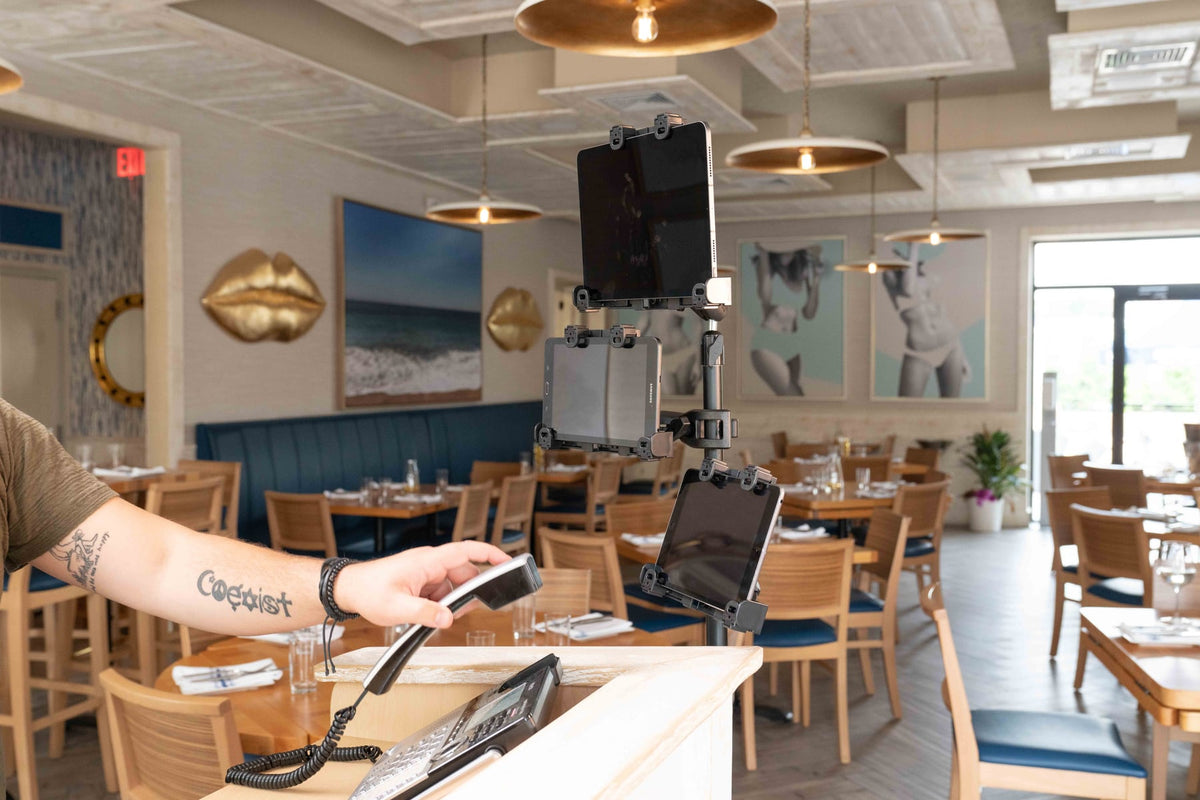
For delivery stations and expo counters where multiple tablets need to be visible at once, the iBOLT Quad Tablet Tower TabDock Stand ($149.95) holds four tablets in a single floor-standing tower. Ghost kitchens and multi-platform operators use this setup to keep every active marketplace visible without spreading tablets across the counter. It is heavy-duty construction designed for repeated daily use in a commercial environment.

iBOLT Quad Tablet Tower TabDock™ Stand - $149.95
When counter space is the constraint, the iBOLT Tablet Tower TabDock POS Wall Mount ($134.95) moves four tablets off the counter entirely. The pole extends from 17.5 to 28.5 inches, each holder rotates 360 degrees, and the whole system mounts to any flat wall surface. For kitchens where every inch of counter is working, this is the practical answer.

Station Setup Decision Checklist
- Identify every screen role: ordering, KDS, pickup display, delivery acceptance, customer kiosk, backup
- Decide whether aggregator software consolidates your ordering tablets or whether you run separate platform tablets
- Confirm KDS placement at the cook line or expo pass regardless of front-of-house software
- Choose locking mounts for any public-facing or high-traffic tablet
- Use multi-tablet mounts at delivery stations where more than two screens need to be visible simultaneously
- Plan for backup tablet access: mounted, charged, and ready even if not in active use
- Match mount type to surface: wall mount where counter space is limited, weighted base where drilling is not an option, drill base where permanent security is the priority
Frequently Asked Questions
Does aggregator software eliminate the need for multiple tablets?
It reduces the number of ordering tablets, but most restaurants still need separate screens for KDS, pickup display, and delivery acceptance. Physical screen count rarely drops to one.
What is the difference between a KDS and a pickup screen?
A KDS shows the kitchen what to make and in what order. A pickup screen shows customers or runners which orders are ready. They serve different audiences and usually need to be in different locations.
Are locking tablet mounts necessary for back-of-house screens?
Not always. Back-of-house screens used only by staff can use standard adjustable mounts. Locking mounts are most important for customer-facing or high-traffic counter positions.
Can iBOLT mounts hold tablets from different manufacturers?
Yes. iBOLT tablet mounts are compatible with 7 to 11-inch tablets across brands, so a mixed-device environment, common when running multiple platforms, is not a problem.
Every restaurant tablet setup is a little different. Whether you are running four separate marketplace tablets in a ghost kitchen or a single POS-integrated system with a KDS and a pickup screen, the physical placement of those screens shapes how fast your team can actually work. Explore the full iBOLT lineup to find the mount that fits your station.

Leave a comment
This site is protected by hCaptcha and the hCaptcha Privacy Policy and Terms of Service apply.